How to Check a Video With SynthID in Gemini
Check a video for SynthID in Gemini, understand audio and visual findings, and learn why a missing watermark does not prove authenticity.

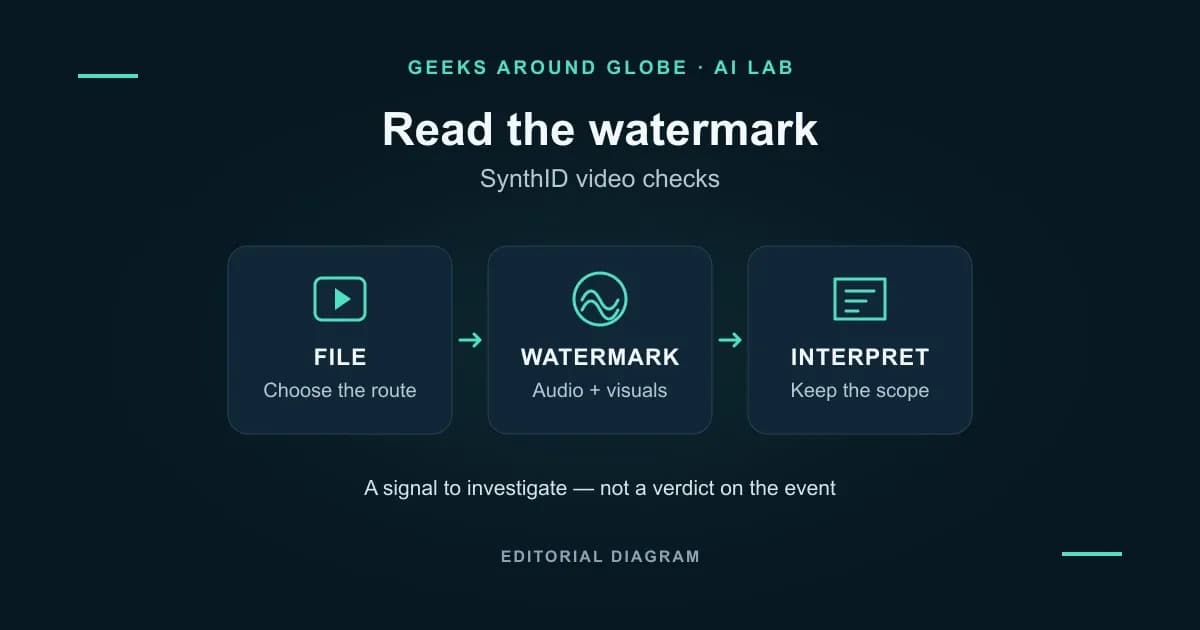
To check a video for Google's SynthID watermark, upload the file to Gemini and ask whether Google AI created or edited it. Read the answer for the affected audio or visual segments. A watermark result is evidence about how content was made; it does not establish whether the event shown actually happened. Google's video-verification announcement
Documentation guide · Sources checked 21 November 2026. Geeks Around Globe has not run an independent detection test for this article.
Choose the right checking route
Google offers both the standalone SynthID Detector and a check inside Gemini. Their documented coverage differs:
| Route | What the documentation establishes |
|---|---|
| SynthID Detector website | Google's October announcement describes checks for images, video and audio from Google and participating partners, including OpenAI, NVIDIA, Kakao and Apple. |
| Gemini | Its current help page describes SynthID recognition for content created or edited with Google AI tools. |
The standalone portal became publicly available globally in English in October 2026. That announcement does not mean every file from every named company's products carries a detectable mark. Use the portal's current upload requirements when choosing that route. Detector announcement, updated 29 October
The steps below follow the documented Gemini route. Its account requirements and limits should not be assumed to apply to the separate Detector website. Gemini verification help
Check your video in Gemini
- Sign in at Gemini. Google specifies a personal or eligible Workspace account. On mobile, use the latest app.
- Prepare one video file. The current verification instructions require a file of 100 MB or less and a duration under 90 seconds.
- Choose Add files and upload the video from your device. These instructions concern a file upload; they do not establish that pasting a social-media link runs the same check.
- Ask: “Was this video created or edited by Google AI?”
- Save the answer with the file and check date. Keep any segment or track information attached to the result.
Google's help page supplies the account, upload and duration requirements. Recording the file and result together is our recommended way to avoid attributing a result to the wrong copy. Current verification instructions
Before uploading private footage, review the Gemini Apps Privacy Hub. Google's notice covers shared files and videos, explains that some data is reviewed by people, and advises against submitting confidential material a reviewer should not see. A verification upload should not be treated as processing that stays entirely on your device.
What SynthID is looking for
SynthID embeds a machine-detectable mark into generated content. For images and video, Google describes a mark added during creation and designed to tolerate changes such as cropping and compression. This is different from deciding that a clip merely looks artificial. Google DeepMind's explanation
For video, Google's announcement describes checking both the soundtrack and the visuals. Those results need to be read separately. A result concerning an audio segment does not establish that the pictures in that segment were generated. How Google's video check works
Turn the result into the right next step
| What the check reports | Useful next step | Conclusion to avoid |
|---|---|---|
| A watermark in a particular audio or visual segment | Record the named track and interval. Ask the source what was created or changed. | “Every part of this video was generated.” |
| No watermark found | Continue checking the clip's origin and the claim attached to it. | “This proves the video is authentic.” |
| An unclear result | Preserve the uncertainty; seek a better original or more context. | Converting uncertainty into either “real” or “fake.” |
| An upload or processing error | Resolve the file/access problem before attempting to interpret anything. | Treating a failed check as a negative finding. |
This is an interpretation guide, not a table of GAG test results. Google notes that repeated alterations can interfere with detection. Its watermarking system also depends on supported generation technology. A missing signal cannot establish the origin of every possible video. SynthID technology overview, Gemini's documented limitations
For example, imagine a clip with a genuine street scene and an AI-generated voiceover. If a check identifies a mark in the soundtrack, the next question is who added that narration and whether its claim is supported. Calling the whole scene fabricated would go beyond that result. This is an illustration, not a video we tested.
Keep a useful verification note
When sharing a finding, record these details rather than forwarding a cropped verdict:
| Detail | What to retain |
|---|---|
| File | Filename and where you obtained this copy |
| Check | Tool used and date |
| Finding | The actual response, including any track or interval |
| Scope | Exactly which conclusion the finding supports |
| Unresolved question | What still needs evidence: origin, editing history, location, date or the accompanying claim |
The event and its caption remain separate questions. Even a camera-recorded clip can be presented with the wrong location or date. Conversely, a declared AI illustration can accompany an accurate explanation. Use the watermark finding to direct the next check, and keep the original uploader, earlier versions and independent evidence in view before deciding what to share.
Explore more practical explanations in Geeks Around Globe’s AI coverage.
The weekly question
From obsession to clarity — one original question every week.
We answer one noisy topic at a time, in full. No daily roundup, no thread bait — just the question, the principles, and the system.