AI Shopping Agent Checkout: What Are You Approving?
Before an AI shopping agent buys, check who completes checkout, what you approve and whether Gemini uses permission given now or in advance.

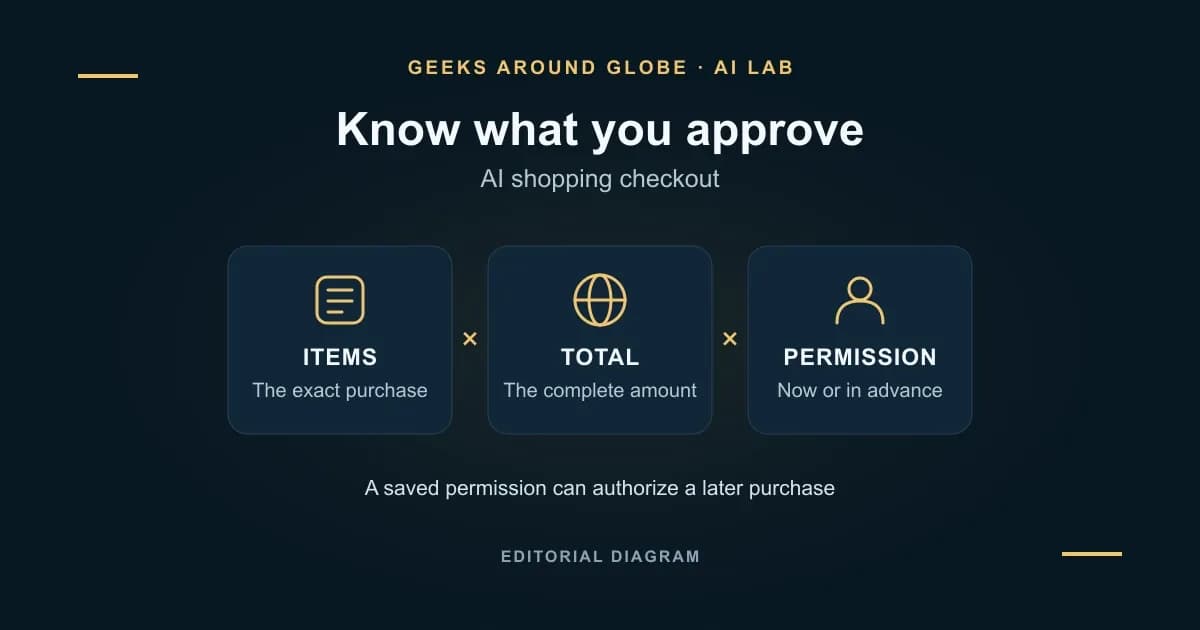
An AI shopping agent can suggest a product, prepare a cart or complete a purchase. Those are different actions. Before authorizing one, identify whether you are approving a particular order now or giving permission for a future purchase.
This explainer checks Google's documentation as of November 22, 2026. We did not connect a shopping account, place an order or test whether an agent follows its limits.
Identify the checkout you are using
Start with the actual screen and action, rather than the assistant's name. Google documents several different shopping routes:
| Route | What the assistant does | What happens before a purchase |
|---|---|---|
| Gemini product search | Finds products and compares options | A recommendation or product card is not an order |
| Connected grocery apps in AI Mode | Builds a grocery cart | The documented flow sends you to the grocery app to purchase |
| Eligible product listings in AI Mode | Offers checkout through a Buy button | You confirm payment information and the shipping address |
| Gemini purchase tasks | Works toward a purchase under conditions you set | Confirmation can happen at checkout or be granted in advance |
Table references: Gemini product search; Connected grocery apps in AI Mode; Eligible product listings in AI Mode; Gemini purchase tasks
The grocery help page currently names Instacart and says that particular flow cannot place or manage orders. That limitation does not describe every Google shopping feature.
Likewise, Google's November 20 Connected Apps announcement adds Target, Albertsons, Safeway and Shaw's in a US rollout, but does not spell out each merchant's approval screen. Check the connection's actual instructions. Our separate Connected Apps availability reference covers country, account and missing-app questions.
Linking an account and approving an order are separate steps
For participating retailers in the Gemini web shopping flow, Google describes linking permissions for loyalty information and managing orders. Read that permission screen separately from the checkout screen: one explains this connection; the other identifies the purchase. This is not the Instacart flow described above.
In that web shopping flow, selecting an eligible product's Buy button opens checkout. Google then describes an order review, with address and payment details filled from Google Pay, followed by Pay with GPay. Selecting a product to discuss or compare is an earlier step.
Google's November 17 Tasks announcement makes another distinction: routine cart additions can use an ongoing permission, while buying requires confirmation or pre-approval. Its own Instacart example ends with the shopper completing the order in Instacart. An assistant can therefore finish its assigned cart-building task while a purchase still awaits you.
What the purchase-task toggle changes
For Gemini purchase tasks, Google's help describes these choices:
- Confirmation on: This is the default. Gemini notifies you when the purchase is ready; you review the order and approve payment.
- Confirmation off: Gemini may complete the transaction when the conditions you set are met, without asking again first.
The setup covers items, permitted merchants, budget, payment method, address and expiry. These instructions currently apply to US adults using personal Google Accounts, in English; broader access to Gemini does not establish purchase-task eligibility.
Google's documentation is not worded consistently. Its general Tasks help says sensitive actions, including purchases, require review and confirmation each time. The purchase-specific page explicitly describes pre-approval. Do not turn the general statement into a promise that a later prompt will always appear. Check the purchase setting itself; if the authority is unclear, finish checkout yourself.
Five things to check before approving
The following is an editorial checklist for reviewing a proposed purchase, not a claim that every app checks these details automatically.
- The exact item and seller. Check the model or variant, condition, pack size and quantity. A familiar retailer's name does not make two different listings interchangeable.
- The complete amount. Review the displayed total, including applicable delivery charges, taxes and fees. Compare that total with your limit, rather than comparing only the headline product price.
- Where and when it arrives. Check the delivery address, collection location if applicable, and delivery estimate. A suitable item arriving after you need it may still be the wrong purchase.
- The permission being granted. Decide whether you are approving this specific order or authorizing a future purchase under conditions. Inspect the saved settings; do not assume wording in a conversational prompt is an enforced payment control.
- The record you will receive. Identify the merchant and where its confirmation will arrive. For AI Mode purchases, Google says merchant emails provide post-purchase follow-up and its order view can show the order ID, total and status.
That last distinction follows Google's AI Mode order guidance; an assistant's progress message alone is not your review of those order details.
A fictional example: the cheaper refill that fails the request
Suppose you want two one-litre bottles of a particular refill, delivered by Friday, for no more than $25 in total. A proposed cart contains two half-litre bottles for $18. Another contains the right bottles for $24, with $5 delivery.
The first cart misses the quantity of product you wanted; the second exceeds your total budget. Neither is acceptable merely because the displayed item price is below $25. At a review screen, you can reject those choices. Before granting advance permission, clarify the pack size, deadline and total you intend, and use manual review if the setup cannot express a condition you need. These figures illustrate the decision; they are not an observed Gemini result.
Check what has already happened before cancelling
Google's purchase-task help says an unfinished task can be cancelled; changing its conditions requires cancelling and creating another task. That is different from changing an order already placed.
For completed AI Mode orders, use the merchant's order-support route. Google's AI Mode order help explicitly says removing an entry from My orders does not cancel it, refund it or stop delivery. Keep the merchant confirmation and check the actual order state before trying again.
For more documentation-based explanations of assistants and their limits, explore Geeks Around Globe's AI coverage.
The weekly question
From obsession to clarity — one original question every week.
We answer one noisy topic at a time, in full. No daily roundup, no thread bait — just the question, the principles, and the system.